
Controller setup · Updated
How to use an Xbox controller as a MIDI controller
Short answer
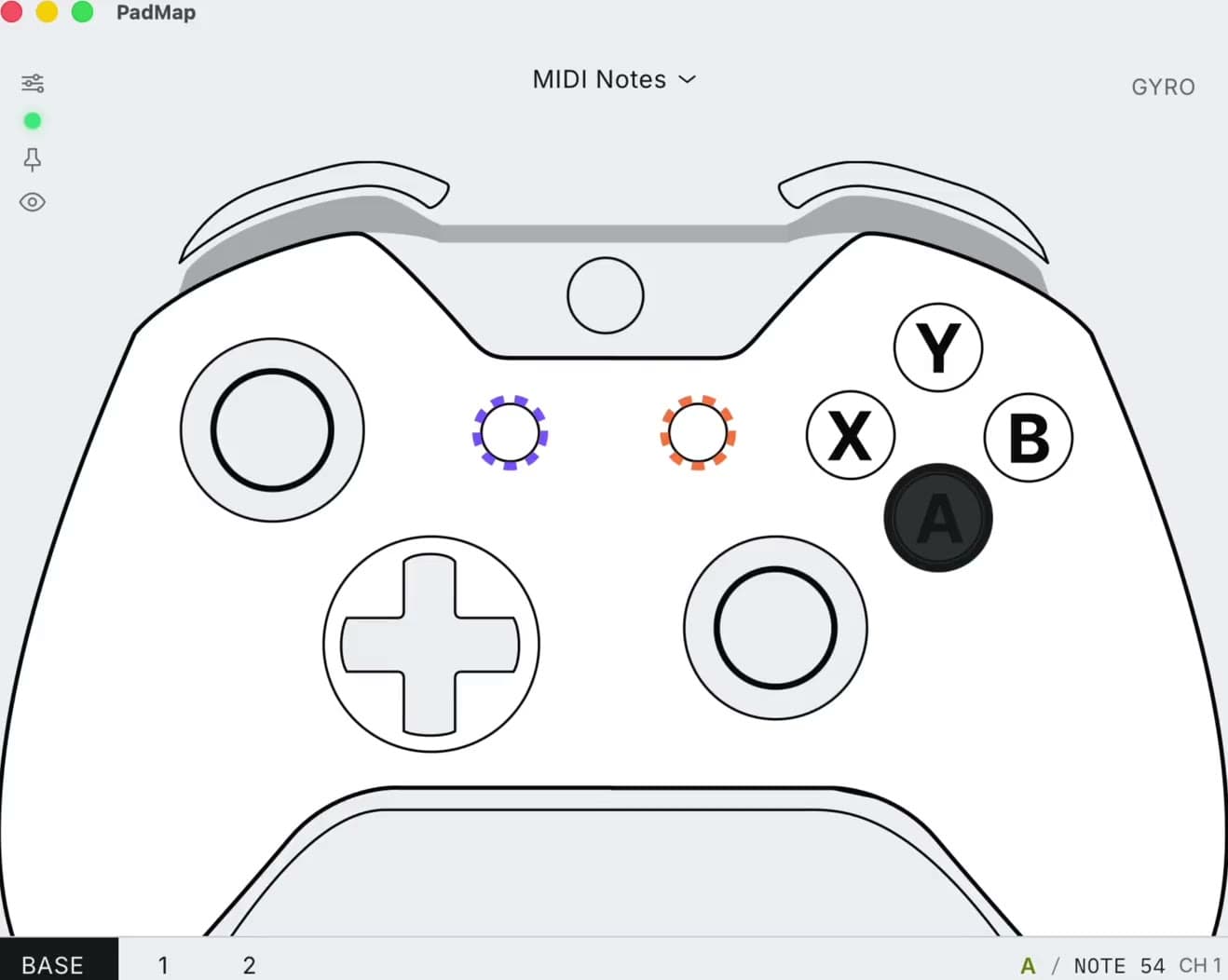
Yes. Connect the Xbox controller by USB cable or Bluetooth — on a Mac, Bluetooth only — and run PadMap. Map the A, B, X and Y buttons to notes and the analog LT/RT triggers and sticks to CC, then enable the PadMap MIDI input in your DAW.
Connect your Xbox controller and send MIDI
- 1
Connect the controller
USB (Windows): Xbox One controllers take a micro-USB cable; Xbox Series X|S controllers, the Elite Series 2 and the Adaptive Controller take USB-C. Microsoft's advice is to use a cable that supports data transfer.
Bluetooth: press the Xbox button to switch the controller on, then hold the raised pair button on the top edge for about three seconds, until the Xbox button flashes quickly. On Windows 11, go to Settings → Bluetooth & devices → Add device → Bluetooth and choose Xbox Wireless Controller. On a Mac, select it in System Settings → Bluetooth.
Bluetooth needs a controller that has it and, on Windows, the Windows 10 Anniversary Update or later. Microsoft doesn't support USB on Apple devices, so Mac users connect over Bluetooth.
- 2
See it in your OS
Paired over Bluetooth, the pad appears as Xbox Wireless Controller under Settings → Bluetooth & devices on Windows. To test the buttons, open the Game Controllers panel (Windows + R, then joy.cpl) and click Properties. That older panel shows LT and RT on one shared axis — Microsoft combines them there by design. On a Mac with Ventura or later, look under System Settings → Game Controllers. If the OS can't see the pad, PadMap can't either. - 3
Run PadMap and set the MIDI port
On a Mac, PadMap brings its own MIDI port, named PadMap Out. On Windows, the port comes from loopMIDI, which is free: set up a PadMap port and select it in PadMap's MIDI dropdown. - 4
Assign notes and CCs
Go through the controls in PadMap and set each one to a note or a CC. Buttons are on-or-off, so they usually get notes; LT, RT and the sticks move smoothly, so they usually get CCs. - 5
Select PadMap as a MIDI input in your DAW
In your DAW's MIDI preferences, enable the PadMap input (PadMap Out on macOS) for notes and for MIDI learn. A DAW that was open before PadMap may need a restart to see the port. See the guide for yours: Ableton Live, FL Studio, Logic Pro, Bitwig Studio, REAPER or Cubase.
Xbox controls for MIDI
Microsoft's names for each control, and where it earns its place in a session:
| Xbox control | What to map it to |
|---|---|
| A, B, X, Y | Notes: a four-pad drum kit, or four chords you trigger with one press each. |
| D-pad | A second set of four notes, or arm and mute switches through MIDI learn. |
| LB / RB (bumpers) | Modifiers. Your index fingers rest on them, so holding one while you play feels natural. |
| LT / RT (triggers) | CC. Both triggers are analog, so they give smooth control over a send level or a filter cutoff. |
| Left and right sticks | Two CCs per stick. They snap back to centre, so they suit sweeps and wobbles that should end where they started. |
| LS / RS (press the sticks) | Low-stakes switches, since a firm push on a stick can click it by mistake. |
| View / Menu | Transport: start and stop, or toggling the loop. |
| Xbox button | Leave it unmapped — Windows uses it to open Game Bar. |
USB, Bluetooth and Microsoft's adapter
Microsoft lists three ways to connect an Xbox controller to Windows: a USB cable, the Xbox Wireless Adapter for Windows, and Bluetooth. This guide covers USB and Bluetooth. Some practical points from Microsoft's support pages:
- Not every Xbox One pad has Bluetooth. On Bluetooth models, the plastic around the Xbox button is part of the controller's face. On older models it's part of the top edge, with the bumpers — those connect by USB only.
- One at a time over Bluetooth. Microsoft recommends pairing only one controller at a time via Bluetooth.
- Firmware updates need a wire or the adapter. Update through the Xbox Accessories app on Windows; it doesn't work over Bluetooth. If your Mac says the controller needs a firmware update, do it from a Windows PC or an Xbox first.
- Mac support. Apple supports the Series X|S controller, Xbox One controllers with Bluetooth, the Elite Series 2 and the Adaptive Controller. Microsoft lists macOS Catalina as the starting point for Bluetooth Xbox One pads.
- Back to the console. Re-sync the controller to your Xbox with the sync button or a USB cable.
Xbox controller notes
- Steam. With Steam Input switched on, Steam can take over the controller. If PadMap doesn't react, close Steam and reconnect the pad.
- Quick switching. Series X|S controllers can jump between a Bluetooth device and an Xbox: double-press the pair button to go back to the last Xbox Wireless connection, and hold it to return to Bluetooth.
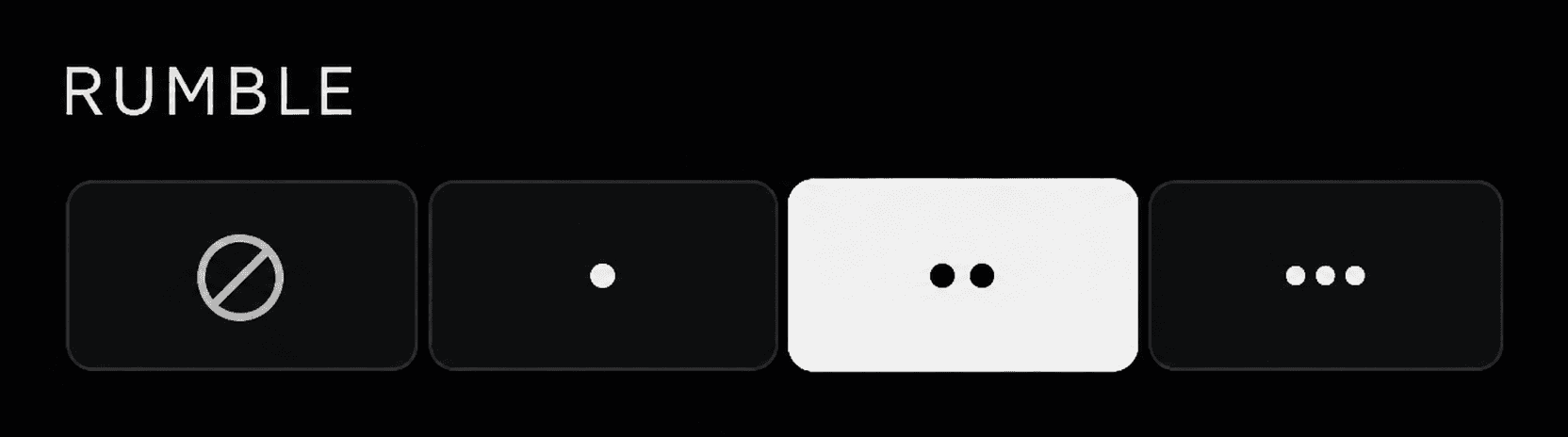
- Rumble. PadMap's rumble feedback works on Xbox controllers.
- No lights or gyro. Xbox pads have no coloured light bar and no motion sensors, so LED colour-coding and tilt control don't apply. If you want to steer a filter by tilting the pad, a PS5 or PS4 controller gives you both.
More controls from the same pad
The bumpers make good layer switches. In PadMap, set LB as a modifier and build a second layer: while you hold LB, A, B, X and Y send four different notes — say, a second drum kit or a set of chord stabs. Set RB up the same way and you have three sets of face buttons on one pad.
Because every layer sends its own notes and CCs, MIDI learn in your DAW sees each layer as a separate control.
Written by Oskar Schachtschneider, who builds PadMap at Sinuslabs.