
Controller + DAW · Updated
How to use an Xbox controller as a MIDI controller in FL Studio
Short answer
Connect the Xbox controller, run PadMap, then in FL Studio press F10, select the PadMap input, set Controller type to (generic controller) and click Enable. Right-click any knob, choose Link to controller and pull LT or RT or move a stick.
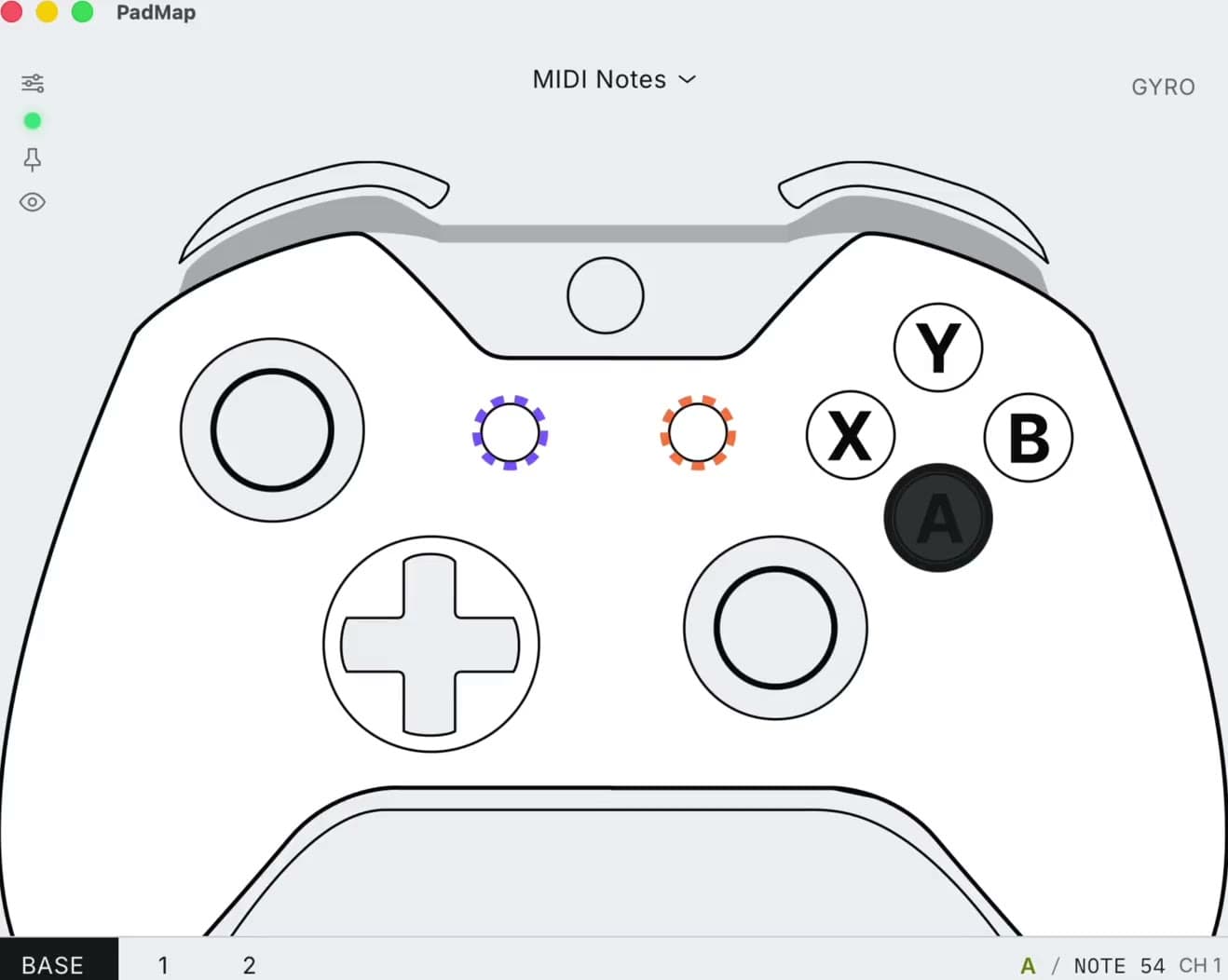
Set up an Xbox controller in FL Studio
- 1
Connect the Xbox controller
On Windows, use a USB data cable, or pair over Bluetooth: press the Xbox button, hold the pair button until the Xbox button flashes quickly, then add Xbox Wireless Controller under Settings → Bluetooth & devices. On a Mac, connect over Bluetooth. See the Xbox controller guide for models and pairing. - 2
Open PadMap and create the port
On Windows, PadMap sends through a free loopMIDI port: create one called PadMap and pick it in PadMap's MIDI dropdown (loopMIDI guide). On macOS the port appears by itself as PadMap Out. Set A, B, X and Y to notes and LT, RT and the sticks to CC. Open PadMap before FL Studio. - 3
Enable the input in MIDI settings
In FL Studio, press F10 or choose Options → MIDI settings. In the Input list, click the PadMap port, set Controller type to (generic controller) and click Enable. Pull a trigger: the MIDI activity light on FL's main panel blinks. If the port is missing, click Refresh device list. - 4
Put FPC on A, B, X and Y
Add FPC and select its channel. Click a pad, left-click its Play Key box, choose Learn and press the Xbox button you want on that pad. Do kick, snare, closed hat and open hat first; those four cover most patterns. - 5
Link LT, RT and the sticks to knobs
Right-click a knob or slider and choose Link to controller, then pull a trigger or move a stick. With Auto accept controller ticked in MIDI settings, the window closes as soon as FL hears the control. For third-party plugins, use Multilink controllers (Ctrl + J) instead.
A starting layout for FL Studio
| Xbox control | In FL Studio |
|---|---|
| A, B, X, Y | Four FPC pads: kick, snare, closed hat, open hat. |
| LT | A mixer send into a reverb track. It sits at zero until you pull. |
| RT | A filter cutoff on your bass or 808, opening as you squeeze. |
| Left stick | Cutoff on X, resonance on Y of a filter on the master or a bus. |
| Right stick | Two knobs of the synth in the selected channel. |
| D-pad | Four more FPC pads, or CC switches for effect mix knobs. |
| LB / RB | Modifiers for a second PadMap layer. |
Leave the Xbox button unmapped: Windows uses it to open Game Bar.
Playing notes without FPC
FL Studio sends incoming notes to whichever channel is selected in the Channel Rack. A face button set to a note in PadMap plays that instrument straight away, with no routing to set up. Select a different channel and the same buttons play that one.
With four buttons you can hold a chord progression: set A, B, X and Y to the root notes you need and switch on a chord mode in the instrument.
Xbox specifics in FL Studio
- Triggers as switches. LT and RT are analog. To use one as an on/off instead, link it and pick the Switch mapping formula in Remote control settings.
- Links follow CC and channel. FL Studio identifies a control by its CC number and MIDI channel. If you change what a stick sends in PadMap, link it again.
- Rumble. PadMap's rumble feedback works on Xbox controllers. Xbox pads have no light bar or gyro.
- Steam. If PadMap doesn't react to the pad, close Steam and reconnect the controller.
Written by Oskar Schachtschneider, who builds PadMap at Sinuslabs.