
Controller setup · Updated
How to use a PS5 DualSense controller as a MIDI controller
Short answer
Yes, with PadMap. Connect the DualSense by USB-C, or pair it over Bluetooth by holding Create and the PS button until the light bar blinks. Run PadMap, map buttons to notes and the L2/R2 triggers, sticks and gyro to CC, then enable the PadMap MIDI input in your DAW.
Connect your PS5 DualSense and send MIDI
- 1
Connect the DualSense
USB: plug the controller in with a USB-C cable that carries data, not just power. That's all a wired connection needs.
Bluetooth: make sure the controller is off — the player indicator under the touchpad should be dark. Hold Create, then press and hold the PS button until the light bar blinks. On Windows 11, open Settings → Bluetooth & devices → Add device → Bluetooth and pick the controller (on Windows 10: Settings → Devices → Add Bluetooth or other device). On a Mac, open System Settings → Bluetooth (System Preferences on macOS Monterey and earlier) and click Connect next to it.
Sony supports the DualSense on Windows 10 (64-bit), Windows 11 and macOS Big Sur 11.3 or later.
- 2
Check that your computer sees it
PadMap sees any controller your computer recognises, so test it there first. On Windows, search the Start menu for Set up USB game controllers, select the controller and click Properties: the button indicators light up as you press. On macOS Ventura or later, the DualSense should be listed under System Settings → Game Controllers. If it isn't listed, fix the connection before you go further. - 3
Open PadMap and pick the MIDI port
On macOS, PadMap creates its own MIDI port, listed as PadMap Out, and there's nothing else to set up. On Windows, PadMap sends through a free loopMIDI port: create one called PadMap, then pick it in PadMap's MIDI dropdown. - 4
Map the controls
In PadMap, choose what each control sends: a MIDI note or a MIDI CC. A good first pass is notes on the four face buttons and CC on L2, R2 and both sticks. Then try the gyro: tilt the controller and it sends CC too. You can change any of it later. - 5
Enable PadMap in your DAW
Switch on the PadMap MIDI input (PadMap Out on macOS) in your DAW's MIDI settings, then arm a track to play notes or use MIDI learn for parameters. If the port is missing, quit the DAW, start PadMap first, then reopen the DAW. Step-by-step guides: Ableton Live, FL Studio, Logic Pro, Bitwig Studio, REAPER and Cubase.
DualSense controls and what to map them to
Sony's names, and the MIDI job each control is suited to. The split that matters: buttons are on or off, while the triggers and sticks report a position.
| DualSense control | Good MIDI job |
|---|---|
| Cross, Circle, Square, Triangle | Notes. Four drum hits under your right thumb, or the root, third, fifth and octave of a chord. |
| D-pad | Four more notes, or switches your DAW learns: mute, solo, record arm, clip launch. |
| L1 / R1 | Easy to hold while you play, which makes them good modifiers for a second mapping layer. |
| L2 / R2 | Analog triggers: they report how far you pull them. Put them on CC — a reverb send, a filter, a volume swell that drops back to zero when you let go. |
| Left and right sticks | Two CCs each, one per axis. They spring back to centre, so use them for moves that should return: a filter wobble, a pan sweep, a wah. |
| Gyro (tilt the controller) | CC from movement. Lean the pad left and right for a filter or pan, tip it forward for a send — your thumbs stay free for the buttons. |
| L3 / R3 (press the sticks) | Jobs you won't mind triggering by accident mid-sweep, such as a delay freeze. |
| Create / Options | Occasional actions: start and stop, loop on and off, through your DAW's MIDI learn. |
USB-C or Bluetooth?
Both connect the same controller. They suit different sessions:
- USB-C keeps the battery topped up through a long session. Apple notes that a PlayStation controller plugged into a Mac with a data-capable cable pairs and connects automatically.
- Bluetooth frees you from the desk. Sony says a DualSense can hold up to four pairings, so it can stay paired with your PS5 and your computer at the same time.
- Back to the console: connect the controller to the PS5 with a USB cable and press the PS button. You can unplug it afterwards.
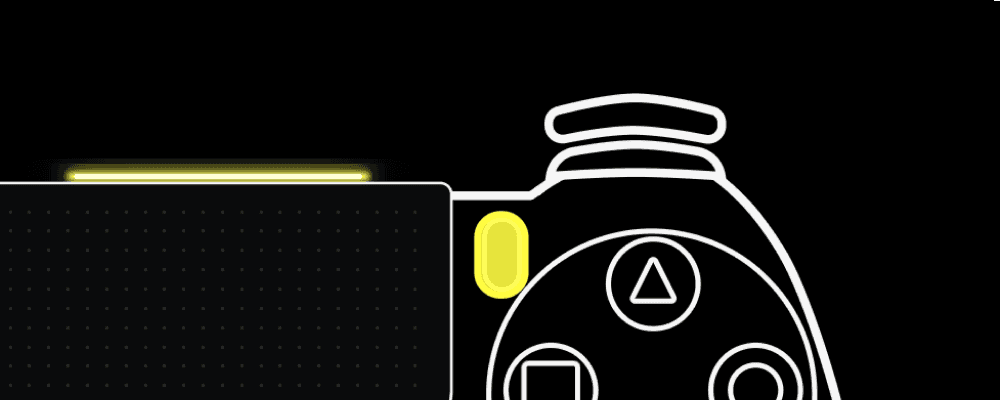
PadMap's light-bar colour-coding and rumble feedback both work over Bluetooth, on Windows and macOS. If the controller drops out over Bluetooth, plug it in — that tells you quickly whether the wireless link is the problem.
DualSense notes
- PS5 controller mode. PadMap 1.7 added a dedicated mode for the PS5 controller, so use 1.7 or later with a DualSense.
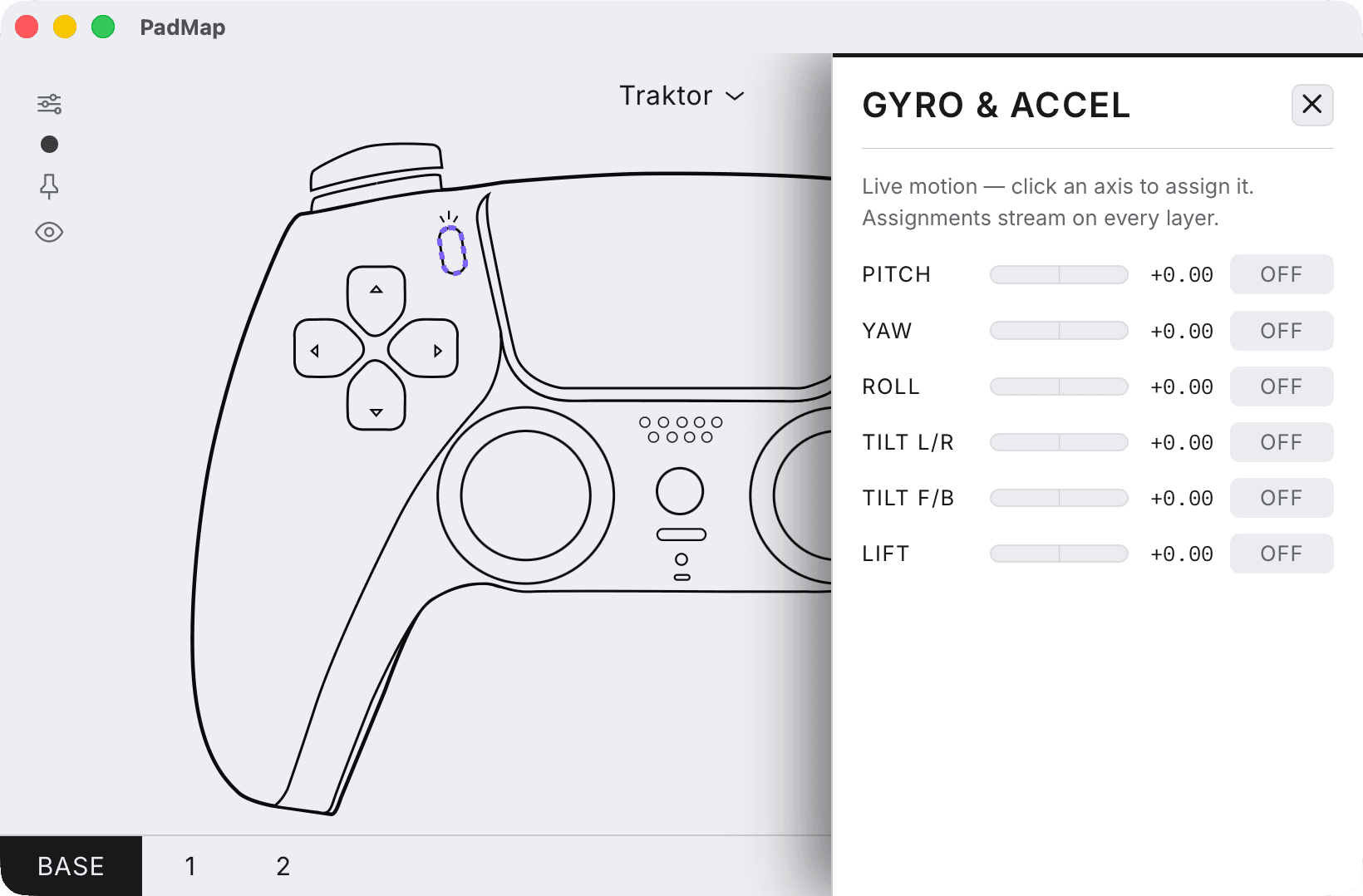
- Motion. PadMap reads the DualSense's gyro and accelerometer. Its Gyro & Accel panel offers six axes — pitch, yaw, roll, tilt left/right, tilt forward/back and lift — and you assign one by clicking it. Motion assignments stay active on every layer.
- Lights and rumble. PadMap colour-codes the light bar to your mapping and gives rumble feedback, both over Bluetooth.
- Steam and DS4Windows. Remapping tools can take a PlayStation controller over or pass it on as a different one. If PadMap doesn't react to the DualSense, quit them, reconnect the controller and try again.
Double your buttons with layers
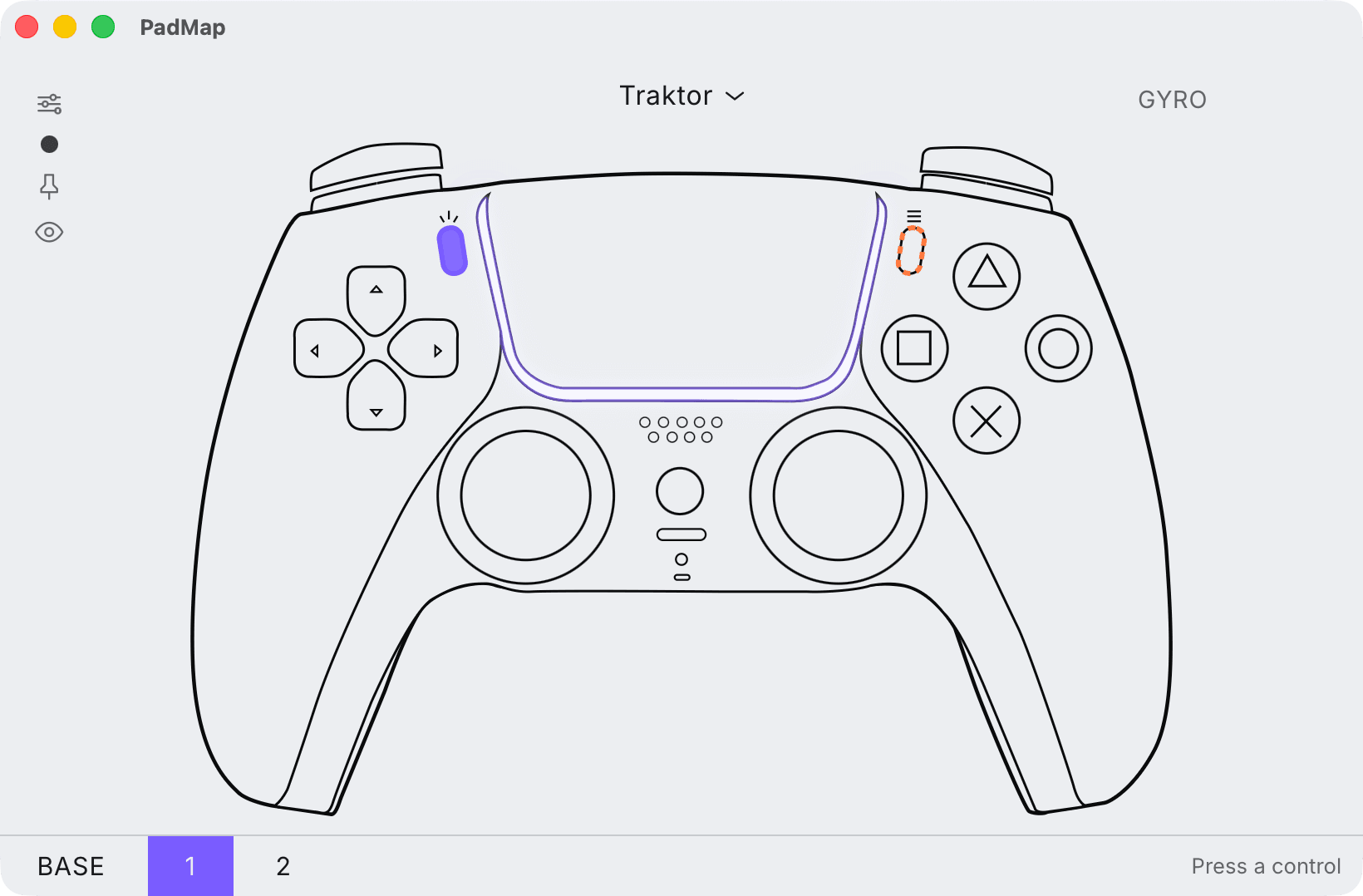
A DualSense runs out of buttons fast once you want to play drums and launch clips from the same pad. PadMap lets you stack mapping layers and set any control as a modifier: while you hold it, the other controls switch to a different set of notes or CCs.
One way to set it up: on the base layer the face buttons play a kit. Hold R1 and they launch four clips instead. Hold L1 and the D-pad stops playing notes and mutes four tracks. Each layer sends its own notes or CCs, so your DAW's MIDI learn treats them as separate controls.
Written by Oskar Schachtschneider, who builds PadMap at Sinuslabs.