
DAW setup · Updated
How to use a PS5 or Xbox controller as a MIDI controller in Logic Pro
Short answer
Open PadMap first and Logic Pro picks up its MIDI port automatically. Select a software instrument track to play it from the buttons. To put a stick on a parameter, click the parameter, press Cmd + L (Learn Assignment), move the stick, then press Cmd + L again.
Set up a game controller in Logic Pro
- 1
Open PadMap before Logic Pro
Connect the controller over USB or Bluetooth and open PadMap. On a Mac, PadMap's MIDI port appears by itself — you don't need loopMIDI or an IAC bus in Audio MIDI Setup. Start PadMap before Logic so the port exists when Logic looks for MIDI devices. PadMap keeps running in the background while you work.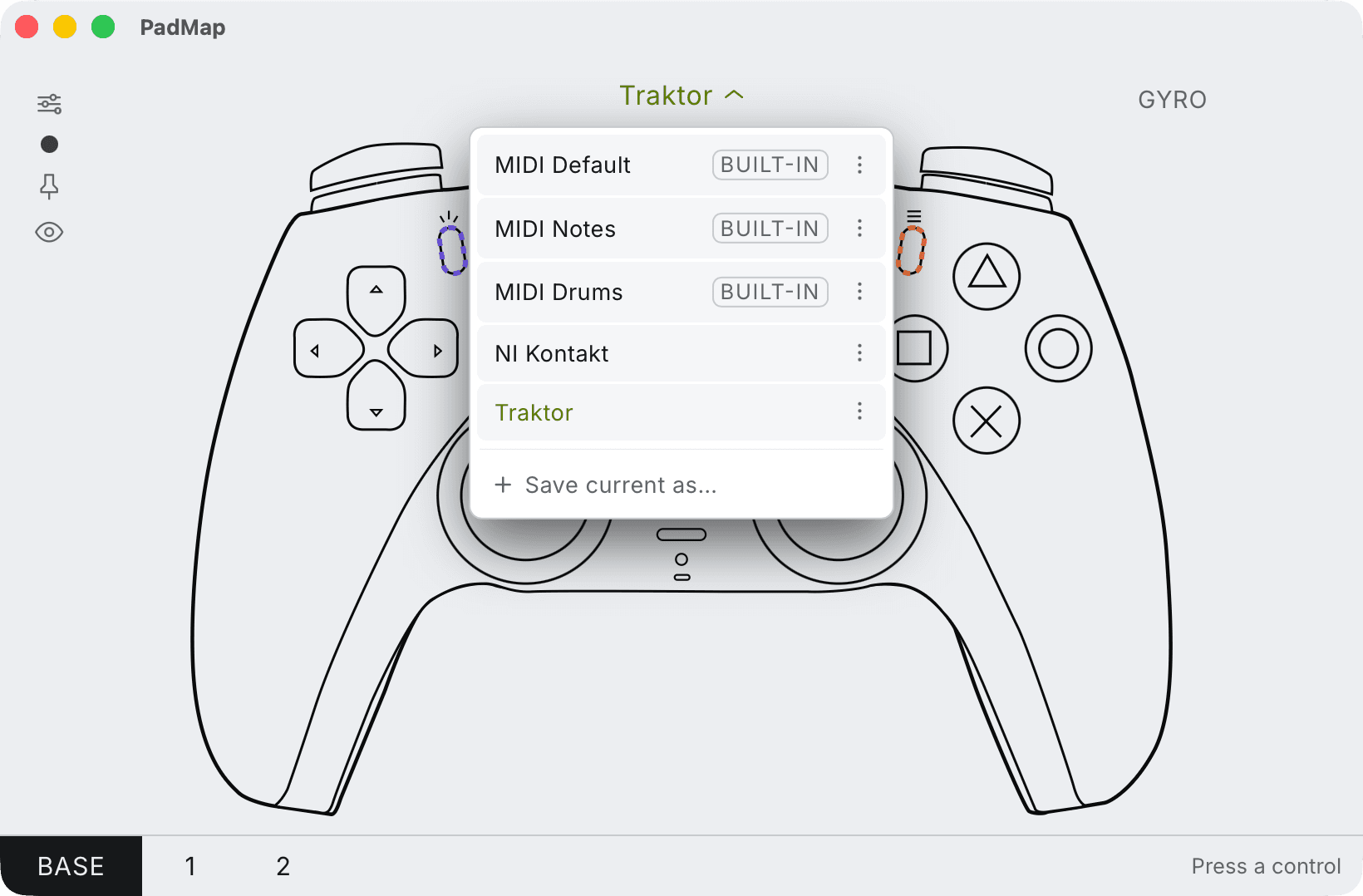
Built-in presets — MIDI Default, Notes and Drums — plus your own, saved with Save current as. - 2
Check that Logic hears the PadMap port
Logic Pro listens to every MIDI input it finds, so in most setups there's nothing to switch on. To confirm, open Logic Pro → Settings → MIDI → Inputs and make sure the checkbox next to PadMap Out is selected. In Logic Pro 11 that pane only appears when Enable Complete Features is turned on in Settings → Advanced; Logic Pro 12 no longer has that switch. - 3
Play an instrument or a Drum Machine Designer kit
Select a software instrument track and press a button you've mapped to a note — Logic plays the selected track. For drums, create a software instrument track and choose a kit from Electronic Drum Kit in the Library; it opens in Drum Machine Designer. Its pads start at C1 on the lower-left pad, which is MIDI note 36 with Logic's default note names. To put a pad on a particular button, hover over the pad, open its Input pop-up menu, choose Learn Note and press the button. - 4
Learn sticks and triggers to parameters
Click the parameter you want in the Mixer or in a plug-in window, then choose Logic Pro → Control Surfaces → Learn Assignment for [parameter name], or press Cmd + L. Move the stick or trigger. Learn mode stays on, so you can click the next parameter and move the next control. Press Cmd + L again, or click the Learn Mode button, to finish.
What each control is good for in Logic
Give each part of the pad a job that matches how it moves, and Logic's own tools do the rest:
| Control | Works well for |
|---|---|
| Left / right stick | A pair of Smart Controls on the selected track — on many synth patches that's filter cutoff and resonance. The stick re-centres when you let go, which suits moves that should snap back. |
| L2 / R2 triggers (LT / RT) | Controls that rest at zero: a send to a reverb or delay bus, an effect's mix, a Smart Control you only push in for a fill. |
| Face buttons | Notes — Drum Machine Designer pads, or whichever software instrument track is selected. |
| D-pad and shoulder buttons | Key commands such as play, stop, record and cycle, or Live Loops cells and scenes. |
Smart Controls or Learn Assignment?
Logic has two places to put a stick, and they behave differently:
- Smart Controls follow the selected track. Open them with B, click the Inspector button in the Smart Controls menu bar, select a screen control, click External Assignment, then Learn, and move the stick. Select another screen control and move another control to keep going; click Learn again to stop. Because the screen controls change with the track, the same stick works on whichever patch you're playing.
- Learn Assignment targets one exact parameter — a plug-in's cutoff, a channel strip's send. In the Controller Assignments window's Easy view, the Channel Strip pop-up menu decides whether the assignment follows the selected track or stays on one channel strip.
Either way, Logic stores assignments with its own settings rather than in the project, so they're still there when you open the next song.
Two things catch people out. Logic ignores note messages while Learn is active, so a button that sends a note won't register: turn off Ignore MIDI Notes While Learning in the window's Actions pop-up menu, or set that button to send CC in PadMap. And in Logic Pro 11, controller assignments, Smart Control learning and key command editing all need Enable Complete Features in Logic Pro → Settings → Advanced.
Transport and Live Loops on the d-pad
Buttons are better spent on commands than on parameters. Set them to send CC in PadMap so they don't also play notes on the selected track, then use one of these:
- Key commands: choose Logic Pro → Key Commands (Option + K), select a transport command or one from the Live Loops Grid group, click Learn New Assignment and press the button.
- Live Loops cells and scenes: click a cell or a Scene trigger, press Cmd + L, press the button, then press Cmd + L again. Four scenes on the d-pad give you a simple way to move through a song section by section.
Layers: a whole Logic setup on one pad
PadMap lets you stack mapping layers and make any control a modifier that switches layers while you hold it. One layout that works well in Logic: the base layer plays Drum Machine Designer pads from the face buttons, with the sticks on Smart Controls. Holding R1 turns the face buttons into CCs learned to play, stop, record and cycle, and moves the sticks onto two send levels.
Logic learns each incoming message on its own, so the second layer needs its own Learn pass. Hold the modifier while you move the control, and Logic picks up the second layer's CC instead of the first.
Written by Oskar Schachtschneider, who builds PadMap at Sinuslabs.