
Controller setup · Updated
How to use a PS4 DualShock 4 as a MIDI controller
Short answer
Yes. Connect the DualShock 4 with a micro-USB data cable, or pair it over Bluetooth by holding Share and the PS button until the light bar flashes. Open PadMap, set the buttons to send notes and L2/R2, the sticks and the gyro to send CC, and enable the PadMap port in your DAW.
Connect your PS4 DualShock 4 and send MIDI
- 1
Plug in or pair the DualShock 4
Cable: the DualShock 4 uses micro-USB. Pick a cable that carries data — plenty of micro-USB leads only charge.
Bluetooth: start with the controller switched off. Hold Share, then press and hold PS until the light bar flashes. Select the controller in your computer's Bluetooth settings — Settings → Bluetooth & devices → Add device on Windows 11, System Settings → Bluetooth on a Mac (System Preferences before Ventura).
Sony supports the DualShock 4 on Windows PCs and on macOS Catalina or later.
- 2
Confirm your operating system recognises it
On Windows, press Windows + R, type joy.cpl and press Enter. The Game Controllers panel should list the pad; open Properties and press a few buttons to see them register. On a Mac running Ventura or later, look for it under System Settings → Game Controllers. On Catalina, Big Sur or Monterey, check that System Preferences → Bluetooth shows it as connected. - 3
Start PadMap and choose its MIDI port
Mac users can skip ahead: PadMap makes its own MIDI port on macOS, listed as PadMap Out. On Windows, PadMap needs a virtual port to send into. Install the free loopMIDI, add a port named PadMap (here's how) and select it in PadMap's MIDI dropdown. - 4
Decide what each control sends
Every button, trigger and stick can send a MIDI note or a CC, and so can the gyro when you tilt the pad. You edit each one in PadMap. Notes suit things you hit; CC suits things you move. - 5
Turn on the PadMap input in your DAW
Open your DAW's MIDI settings and enable the PadMap port (PadMap Out on macOS) as an input. Have PadMap running before the DAW starts, so the port is there when the DAW looks for devices. The details differ per DAW: Ableton Live, FL Studio, Logic Pro, Bitwig Studio, REAPER, Cubase.
DualShock 4 button map
Start from how each control behaves under your hands, not from what it does in games:
| DualShock 4 control | Use it for |
|---|---|
| Cross, Circle, Square, Triangle | Notes you play — kick, snare, hats and a clap, or four one-shot samples. |
| D-pad | Notes under your left thumb, so both hands can play at once. |
| L1 / R1 | Hold-to-change buttons: modifiers that switch to another mapping layer. |
| L2 / R2 | Continuous CC. Both triggers report how far they're pressed, so they work like faders that rest at zero — handy for an effect throw. |
| Left and right sticks | An X and a Y CC per stick. They return to centre when released, which suits gestures rather than settings you want to keep. |
| Gyro (tilt) | CC from how you hold the pad — tilt for a filter or a delay feedback swell while both thumbs keep playing. |
| L3 / R3 | Clicking a stick is easy to do by accident, so give it something harmless, like a tap-tempo or marker. |
| Share / Options | Out of the way of your thumbs, so keep them for transport: play, stop, record. |
Wired or wireless
- Micro-USB cable. The simplest route on both platforms. Apple notes that a DualShock 4 plugged into a Mac with a cable that carries data pairs and connects on its own.
- Bluetooth. Sony documents pairing with Windows PCs and with Macs on macOS Catalina or later, using the Share + PS combination above.
- Using it on the PS4 again. After pairing with a computer, reconnect the controller to the console with a USB cable and press the PS button.
A wired pad never runs flat mid-take. A wireless one lets you play from the sofa, and PadMap's light-bar colour-coding and rumble work over Bluetooth on Windows and macOS. If the pad behaves oddly over Bluetooth, try the cable before you change anything else.
DualShock 4 notes
- You don't need DS4Windows. DS4Windows exists to make the pad look like an Xbox controller to games. PadMap doesn't need that, and while DS4Windows (or Steam Input) is running it can hide the original controller. Quit it before you start PadMap.
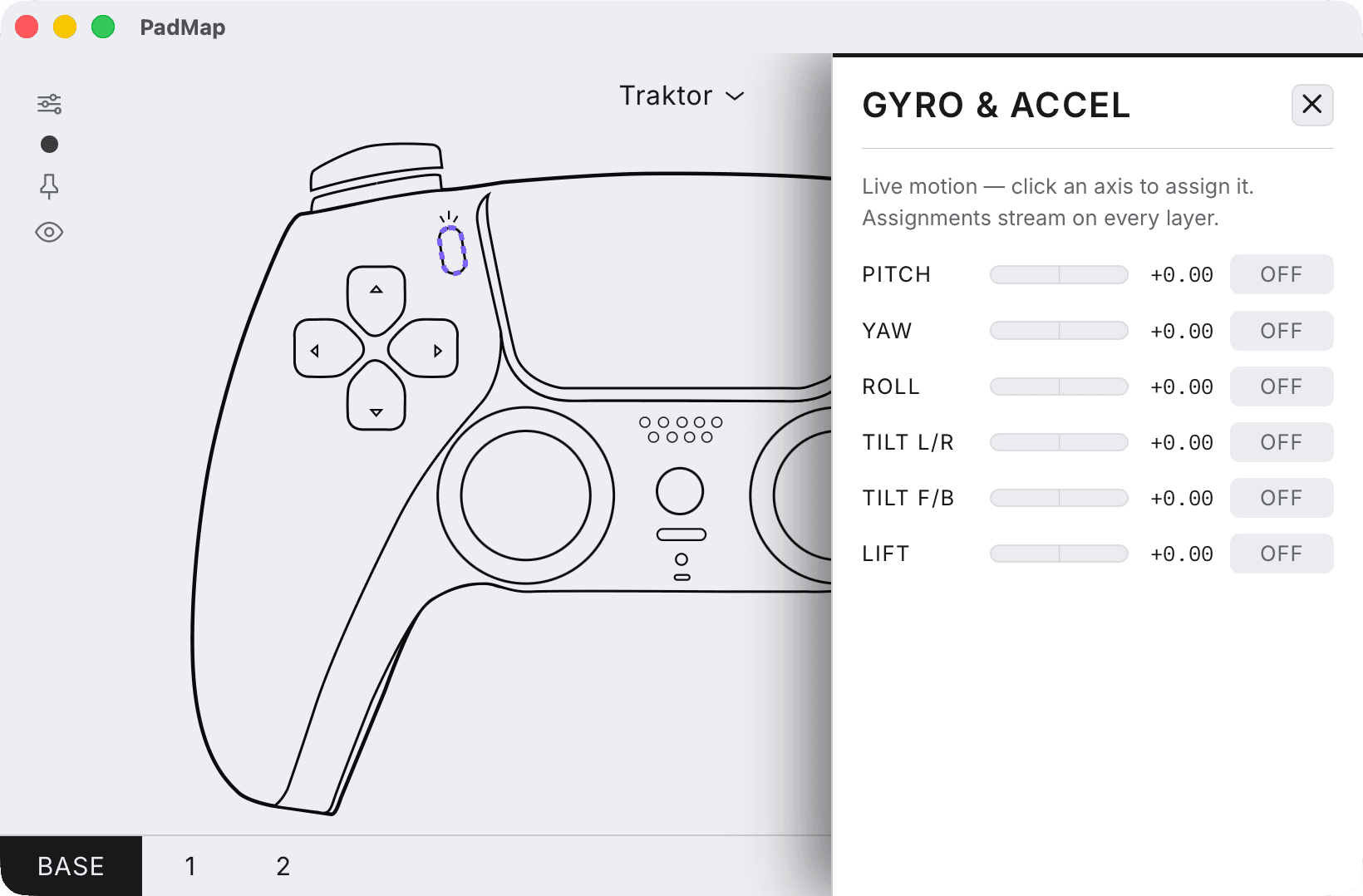
- Motion. PadMap reads the DualShock 4's motion sensor: open Gyro and pick from pitch, yaw, roll, tilt left/right, tilt forward/back and lift. You assign an axis by clicking it, and motion assignments stay active on every layer.
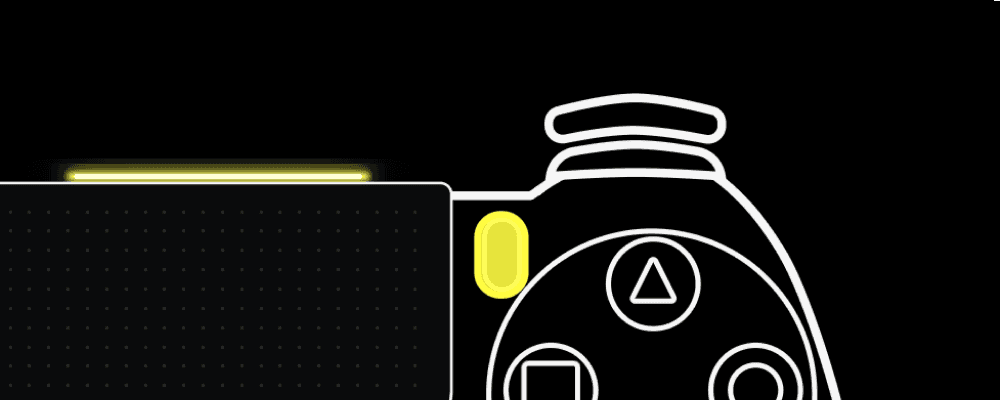
- Light bar and rumble. PadMap colour-codes the light bar to your mapping and adds rumble feedback, both over Bluetooth.
An octave switch with layers
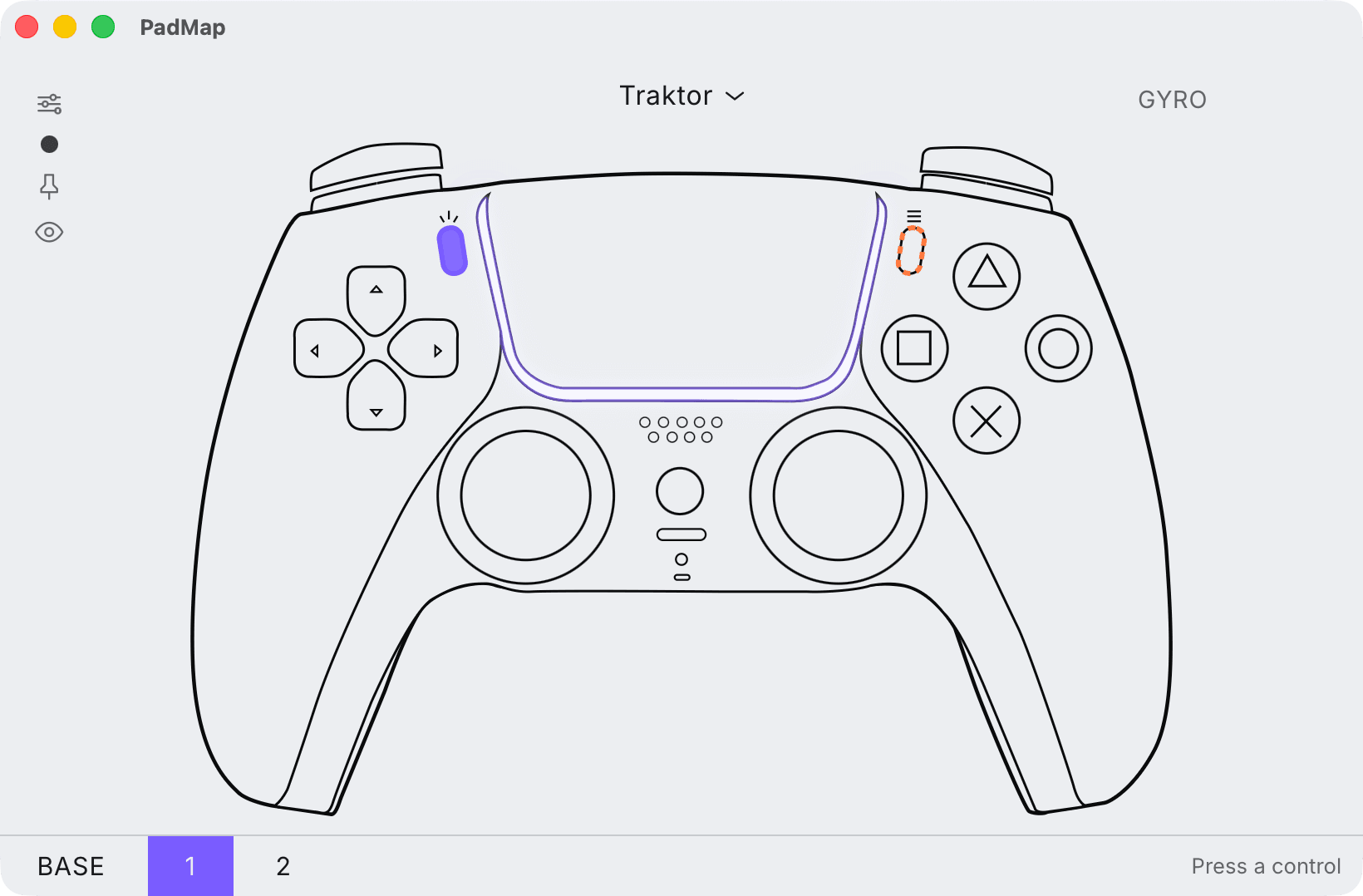
Eight notes across the face buttons and D-pad won't cover a bassline. Mapping layers fix that. Set L1 as a modifier in PadMap, and give the second layer the same buttons an octave higher: hold L1 and you have eight more notes under the same thumbs.
R1 can do the same job for a different purpose, such as turning the D-pad into four mute switches. Each layer sends different notes or CCs, so your DAW never mixes them up.
Written by Oskar Schachtschneider, who builds PadMap at Sinuslabs.