
Controller + DAW · Updated
How to use a PS5 controller as a MIDI controller in Ableton Live
A DualSense has four face buttons, a D-pad, two analog triggers, two sticks and motion sensors. That is a lot of control surface, and Ableton Live ignores all of it, because Live reads MIDI and not gamepads. PadMap sits between the two: it sends each control out as a MIDI note or CC, and Live picks it up like any controller. No Max for Live device is involved, so this works in every edition of Live 11 and 12.
Short answer
Connect the DualSense by USB-C or Bluetooth, run PadMap, then in Live open Settings → Link, Tempo & MIDI and switch on Track and Remote for the PadMap input. Press Cmd/Ctrl + M and map L2, R2, the sticks and the gyro to any parameter.
Set up a PS5 controller in Ableton Live
- 1
Connect the DualSense
Use a USB-C cable that carries data, or pair over Bluetooth: with the controller off, hold Create and the PS button until the light bar blinks, then pick the controller in your Bluetooth settings. The PS5 DualSense guide has the full pairing steps for Windows and macOS. - 2
Open PadMap and map the pad
Open PadMap (version 1.7 or later has a dedicated PS5 controller mode) before you open Live. On macOS the port is PadMap Out; on Windows, create a loopMIDI port and select it in PadMap. Set Cross, Circle, Square and Triangle to notes 36–39, and L2, R2 and both sticks to CC.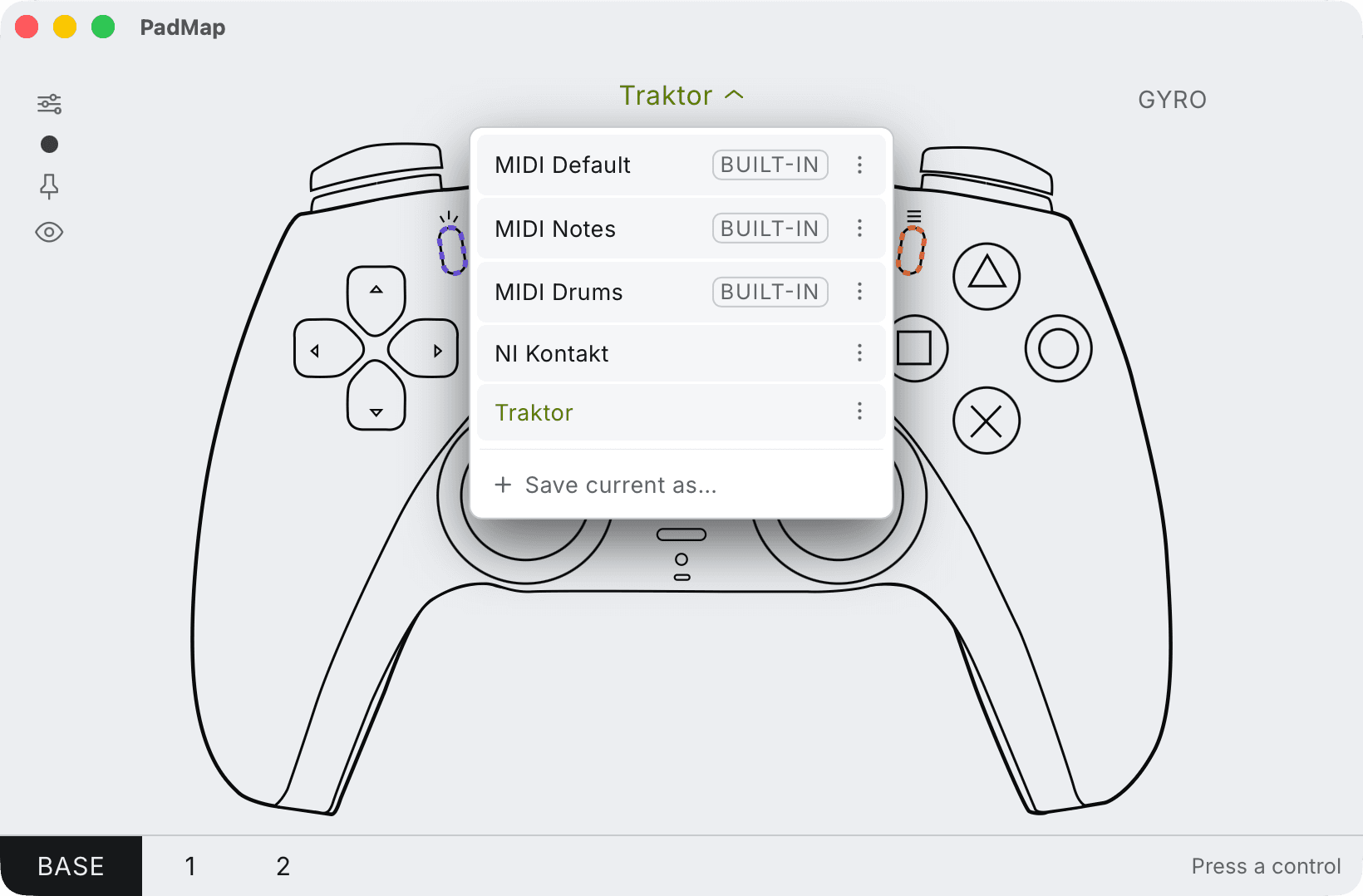
Built-in presets — MIDI Default, Notes and Drums — plus your own, saved with Save current as. - 3
Enable the PadMap input in Live
Open Live → Settings on macOS or Options → Settings on Windows (Preferences in Live 11), go to Link, Tempo & MIDI, and switch on Track and Remote for the PadMap input. Leave Control Surface at None. - 4
Play and map
Arm a MIDI track with a Drum Rack: the face buttons play pads 1–4. For parameters, press Cmd + M or Ctrl + M, click a parameter, move L2, R2 or a stick, and press the shortcut again when you're done. - 5
Add the gyro
In PadMap's Gyro & Accel panel, click an axis such as tilt left/right to give it a CC. Back in Live's MIDI Map Mode, click a parameter and tilt the controller. Keep the pad still while you map other controls, so Live doesn't learn the tilt by mistake.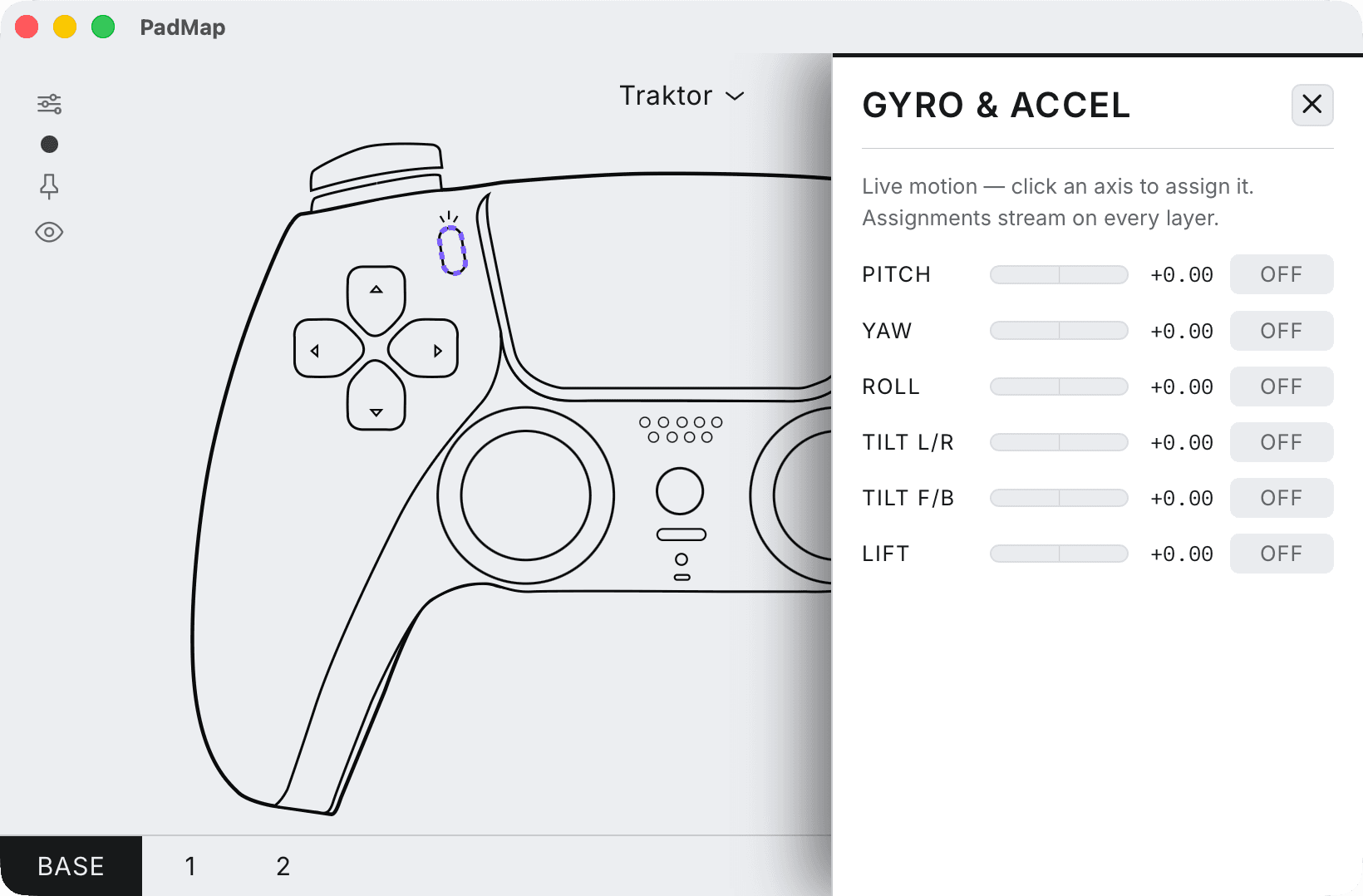
Six motion axes; click one to assign it. Motion assignments work on every layer.
A starting layout for Live
| DualSense control | In Live |
|---|---|
| Cross, Circle, Square, Triangle | Drum Rack pads 1–4 (notes 36–39). |
| D-pad | Four clip slots or scene launches, through MIDI Map Mode. |
| L2 | A reverb send. It rests at zero and comes in as far as you pull. |
| R2 | A Rack macro for build-ups: filter, drive and a little delay on one pull. |
| Left stick | Auto Filter frequency on X, resonance on Y. |
| Right stick | Two more parameters, for example pan and delay feedback. |
| Gyro, tilt left/right | A filter or pan you steer by leaning the pad, while your thumbs play the buttons. |
| L1 / R1 | Modifiers for a second PadMap layer. |
| Create / Options | Stop and play. |
What the DualSense adds over other pads
- Motion. PadMap reads the gyro and accelerometer and offers six axes: pitch, yaw, roll, tilt left/right, tilt forward/back and lift. Motion assignments stay active on every layer. More in the gyro guide.
- Light bar. PadMap colour-codes the light bar to your mapping, so you can tell which setup is active without looking at the screen.
- Rumble. PadMap gives rumble feedback. Both light bar and rumble work over Bluetooth, on Windows and macOS.

Sticks, triggers and Takeover Mode
A stick rests in the middle and a trigger rests at zero, and Live needs to know what to do when a control and a parameter disagree.
- In the Mapping Browser, narrow Min and Max so a stick's centre lands on a useful value.
- Under Link, Tempo & MIDI, set Takeover Mode to None if you want sweeps that jump straight to the stick and snap back, or Pick-Up if a parameter should wait until the control reaches it.
- If PadMap doesn't react to the pad, quit Steam and DS4Windows. Both can take a PlayStation controller over.
Written by Oskar Schachtschneider, who builds PadMap at Sinuslabs.