
Technique · Updated
Motion MIDI controller: send MIDI from a PS5 or PS4 controller's gyro
You may already own a motion MIDI controller. PS5 and PS4 controllers have a gyroscope and an accelerometer inside, and PadMap reads them and sends the movement as MIDI CC, so leaning or turning the controller moves a filter, a pan, an effect amount or anything else your software can map. Your thumbs stay on the buttons, which makes motion the one control you can use while you play.
Short answer
Connect a PS5 DualSense or PS4 DualShock 4, open the gyro panel in PadMap and click a motion axis such as tilt left/right to assign it a CC. In your DAW, start MIDI learn on a parameter and tilt the controller. Xbox controllers have no motion sensors.
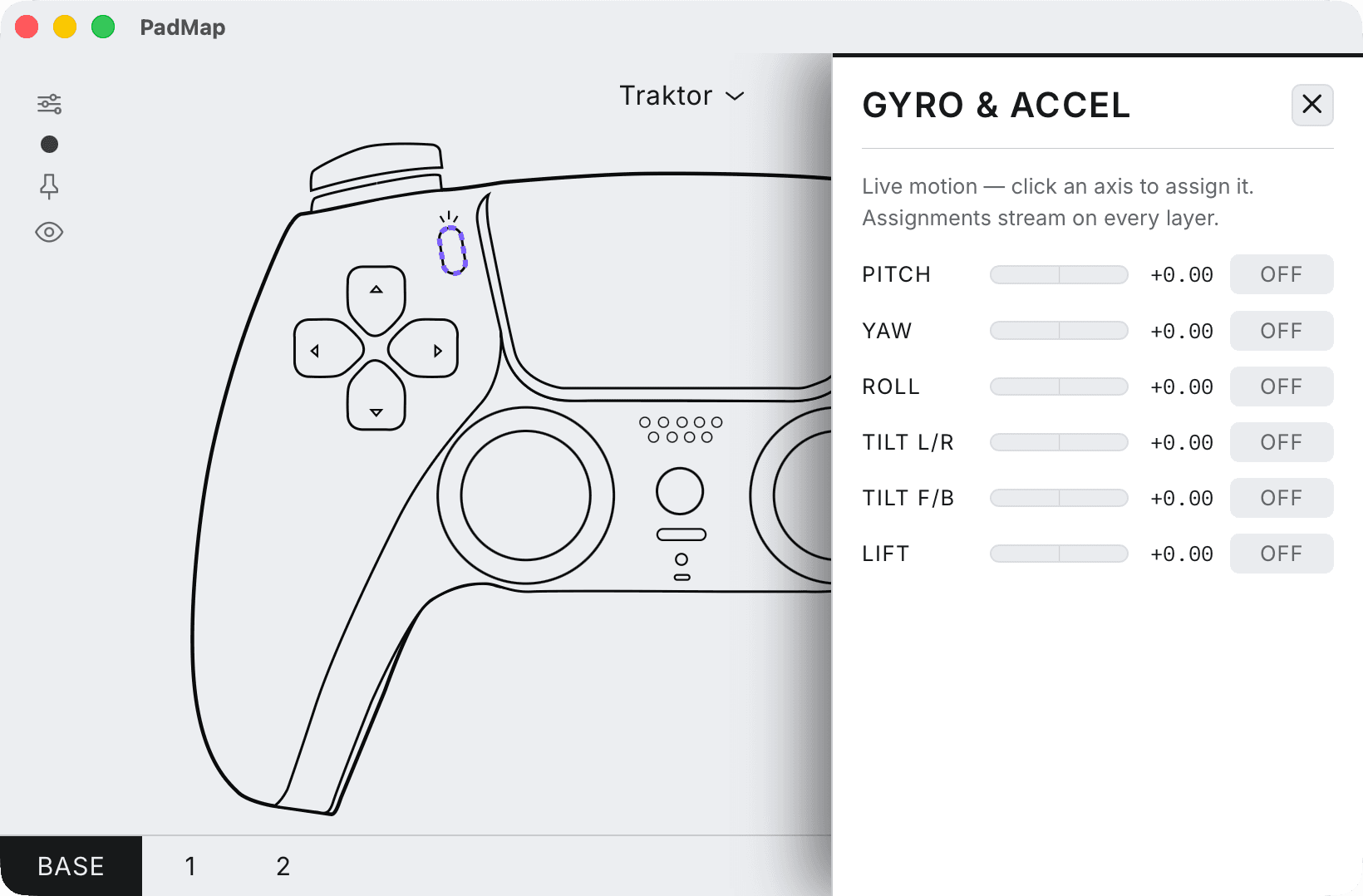
Send MIDI from the gyro
- 1
Connect a PlayStation controller
Motion needs a controller that has the sensors: a PS5 DualSense or a PS4 DualShock 4, over USB or Bluetooth. Xbox controllers don't have a gyro. - 2
Assign a motion axis in PadMap
Open the gyro panel in PadMap (Gyro & Accel for a DualSense). It offers six axes: pitch, yaw, roll, tilt left/right, tilt forward/back and lift. Click the one you want to assign it. Start with one axis; two at once is hard to keep apart at first. - 3
Learn it in your DAW
Put the controller down, start MIDI learn on a parameter, then pick the controller up and move it along the axis you assigned. In Ableton Live that is MIDI Map Mode (Cmd/Ctrl + M); in FL Studio, right-click a knob and choose Link to controller. Setting the pad down first stops the DAW from learning a stray movement. - 4
Set the range
Decide how far a comfortable tilt should move the parameter, and narrow the mapping's minimum and maximum in your DAW to match. A filter that only moves between 300 Hz and 5 kHz is much easier to play than one that swings across the whole range.
The six motion axes and what suits them
| Axis | Good for |
|---|---|
| Tilt left / right | Lean the pad like a steering wheel. The most natural one to start with: pan, filter cutoff, a crossfade between two sounds. |
| Tilt forward / back | Tip the top edge away from you or towards you. Good for amounts: reverb send, drive, the mix of an effect. |
| Roll, pitch and yaw | Rotation around the controller's three axes. Try each one on a single parameter first to feel how it responds before you build a mapping around it. |
| Lift | Moving the controller up. A gesture you make on purpose, such as lifting into a build. |
Motion assignments stay active on every PadMap layer, so the tilt keeps working when you hold a modifier to switch what the buttons do.
Three motion mappings worth trying
- Filter on a held chord. Hold a chord with the face buttons and tilt left/right for cutoff. It plays like a wah you steer with your wrists.
- Reverb throw. Map tilt forward/back to a send. Tip the pad forward at the end of a phrase and level it again to dry the mix up.
- Visuals. In Resolume or TouchDesigner, tilt maps well to position, rotation and camera moves, because the image follows your hands.
Keeping motion under control
- Smooth it in the host. Hands shake a little. If the parameter jitters, add smoothing where your software offers it: FL Studio has smoothing in Remote control settings, and TouchDesigner has the Lag CHOP.
- Map motion last. While you MIDI-learn buttons and sticks, any movement of the pad can be learned instead. Assign the gyro after everything else, or rest the controller on the desk while you map.
- Give it a resting value. Set the range so that holding the pad level leaves the parameter where the track should normally sit.
- Go wireless. Motion is easier without a cable pulling on the pad. PadMap works over Bluetooth on Windows and macOS.
Written by Oskar Schachtschneider, who builds PadMap at Sinuslabs.