
VJ & DJ setup · Updated
How to use a gamepad as a MIDI controller in TouchDesigner
TouchDesigner can read a game controller in two ways. Its Joystick CHOP reads the pad directly, and its MIDI In CHOP reads MIDI. PadMap is for the second route: it turns a PlayStation, Xbox or generic controller into MIDI notes and CC, so the pad arrives in your network the same way a MIDI controller does. That gives you mapping layers, tilt control on PS4 and PS5 pads, and one mapping you can reuse in your DAW or VJ software.
Short answer
Run PadMap, open Dialogs → MIDI Device Mapper in TouchDesigner, add a device mapping and choose the PadMap port as its In Device. Then add a MIDI In CHOP: it outputs a channel for each button note and each stick, trigger or gyro CC, ready to export to any parameter.
Set up your gamepad in TouchDesigner
- 1
Connect the controller and start PadMap
Connect the pad over USB or Bluetooth and open PadMap. On macOS the MIDI port appears by itself as PadMap Out. On Windows PadMap sends through a free loopMIDI port: set one up and select it in PadMap. Start PadMap before TouchDesigner. Derivative notes that a device connected after TouchDesigner opened may not be listed until you save the project and restart.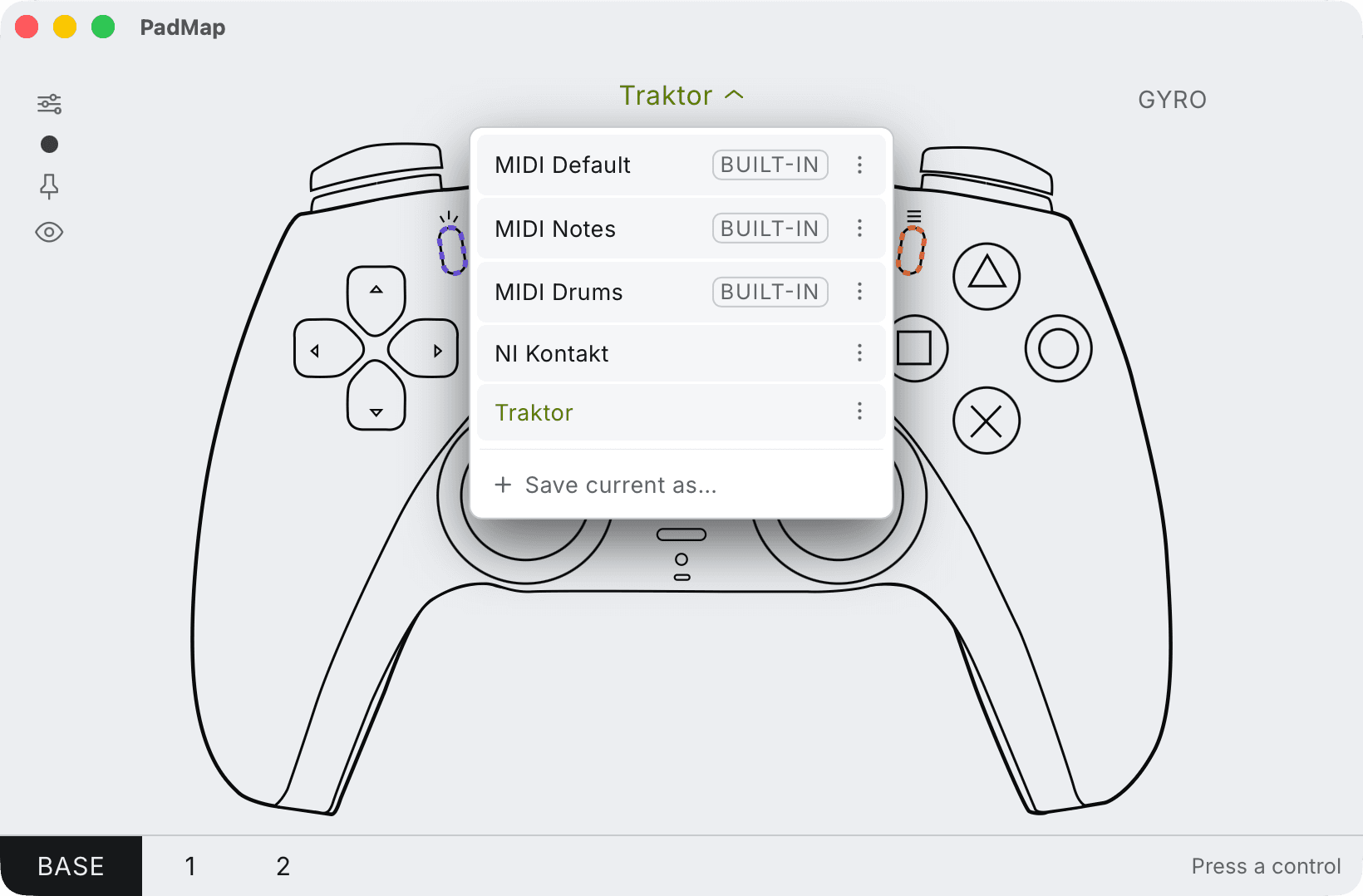
Built-in presets — MIDI Default, Notes and Drums — plus your own, saved with Save current as. - 2
Add the PadMap port in the MIDI Device Mapper
Choose Dialogs → MIDI Device Mapper. Add a device mapping: a new row appears with an ID and a channel filled in. Click the row's In Device field and pick the PadMap port (PadMap Out on macOS, your loopMIDI port on Windows). Note the row's ID, because the CHOP in the next step refers to it. - 3
Read the pad with a MIDI In CHOP
Add a MIDI In CHOP and set its Device ID to the ID from the mapper. Press buttons and move the sticks: the CHOP grows a channel for each note and each controller it hears. On the Control page, set Normalize to 0 to 1 so a stick or trigger gives you 0–1 instead of 0–127. - 4
Drive parameters from the channels
Use the channels like any other CHOP data: export one to a parameter, reference it in an expression, or run it through a Math, Lag or Filter CHOP first to scale and smooth it. A stick rests at the middle of its range, so a Math CHOP that maps 0–1 to −1–1 gives you a control that sits at zero until you push it.
Joystick CHOP or PadMap?
Be clear about what you need before adding a tool. TouchDesigner's Joystick CHOP reads a controller's axes, buttons, sliders and POV hats with nothing else installed. If raw sticks and buttons inside one project are all you want, start there.
PadMap earns its place when you want more than that:
- Layers. Make a button a modifier in PadMap and the rest of the pad sends a different set of notes and CCs while you hold it. In TouchDesigner each layer arrives as its own channels, with no switching logic to build.
- Tilt. On PS4 and PS5 controllers PadMap reads the motion sensors and sends them as CC, so you can steer a parameter by leaning the pad.
- One mapping, many hosts. The same PadMap setup feeds TouchDesigner, Resolume and Ableton Live. If your show runs sound and visuals together, the pad speaks one language to all of them.
- Feedback in your hands. PadMap colour-codes the light bar on PS4 and PS5 pads to your mapping and adds rumble feedback.
What each control gives you
| Control | In TouchDesigner |
|---|---|
| Face buttons, D-pad | Note channels that go to 1 while held. Use them as triggers and toggles: cue a scene, fire an envelope, step a Count CHOP. |
| Left / right stick | Two CC channels per stick. Good for X/Y jobs: camera pan and tilt, a 2D position, a feedback offset. |
| L2 / R2 triggers (LT / RT) | One CC channel each that rests at 0. Good for amounts: brightness, displacement, a mix between two looks. |
| Gyro (PS4 / PS5 pads) | CC channels from pitch, yaw, roll and tilt. Smooth them with a Lag CHOP and they make a natural camera or light control. |
Keeping it steady in a show
- MIDI is 7-bit. A CC has 128 steps. On a slow, visible move that can show as stepping, so put a Lag or Filter CHOP after the MIDI In CHOP.
- Filter by channel. If other MIDI gear shares the port, set the MIDI In CHOP's MIDI Channels to the channel PadMap sends on.
- Cable for the long nights. Bluetooth frees you from the desk; USB also keeps the controller charged.
Written by Oskar Schachtschneider, who builds PadMap at Sinuslabs.