
VJ & DJ setup · Updated
Use a gamepad as a Traktor MIDI controller
Traktor Pro maps any MIDI controller through its Controller Manager, but it doesn't listen to gamepads. PadMap converts the buttons, triggers and sticks of a PlayStation, Xbox or generic controller into MIDI notes and CC, so the pad shows up in Traktor as a Generic MIDI device. It won't replace jog wheels, but it makes a good second controller for cues, loops and effects.
Short answer
Run PadMap, open Traktor's Preferences → Controller Manager, add a Generic MIDI device and set its In-Port to the PadMap port. Click Add In, choose a function such as a cue or an effect knob, click Learn and press the button or move the stick.
Set up your gamepad in Traktor Pro
- 1
Connect the controller and start PadMap
Connect the pad over USB or Bluetooth and open PadMap. On macOS the MIDI port appears on its own as PadMap Out. On Windows PadMap sends through a free loopMIDI port, so create one first. Open PadMap before Traktor.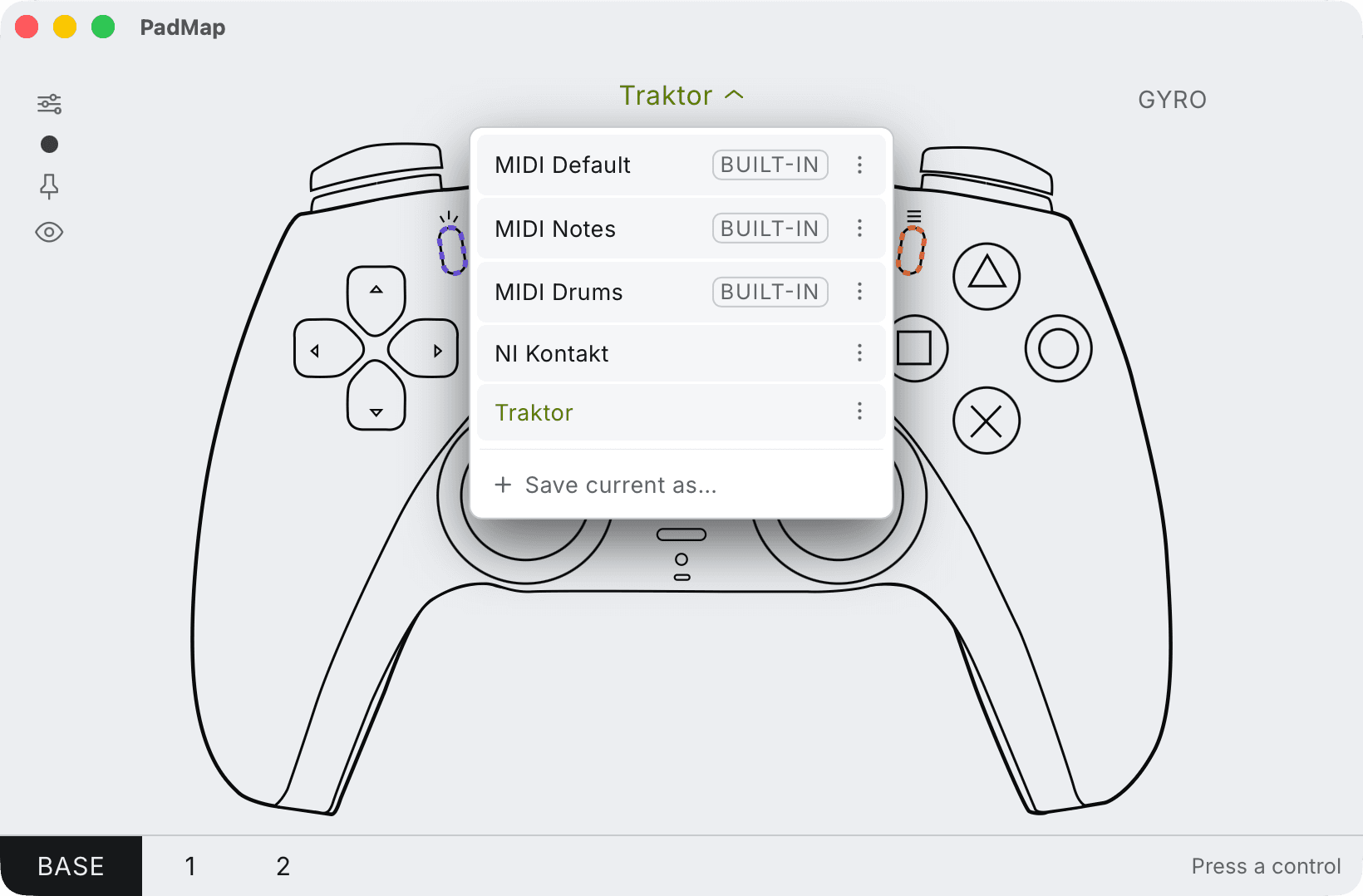
Built-in presets — MIDI Default, Notes and Drums — plus your own, saved with Save current as. - 2
Add a Generic MIDI device
Open Traktor's Preferences and go to Controller Manager. Under Device Setup, click Add… and choose Generic MIDI. Set In-Port to the PadMap port (PadMap Out on macOS, your loopMIDI port on Windows). Leave Out-Port at None: a gamepad has no pad lights for Traktor to drive. - 3
Add a function and learn the control
Under Assignment Table, click Add In… and pick the function you want, for example a deck's cue, a loop size or an FX unit's dry/wet. Click Learn, press the button or move the stick on the pad, then click Learn again to stop listening. - 4
Set how the control behaves
In Mapping Details, set Type of Controller to Button for a button and to Fader / Knob for a stick or trigger. For buttons, Interaction Mode decides the feel: Hold is active only while you hold, Toggle flips with each press and Trigger fires once. Use Assignment to choose the deck or FX unit the mapping belongs to.
What a gamepad is good at in a DJ set
| Control | Works well for |
|---|---|
| Face buttons | Hotcues. Four cue points under your right thumb, set to Trigger or Hold. |
| D-pad | Browsing and loading: list up and down, load into deck A or B. |
| L2 / R2 triggers (LT / RT) | Effect amounts. Dry/wet on an FX unit rests at zero and comes in as you pull, then drops out when you let go. |
| Left / right stick | A filter per deck. The stick springs back to centre, and a filter's neutral position is its centre, so letting go clears the filter. |
| L1 / R1 (LB / RB) | Modifiers for a second PadMap layer: hold one and the face buttons become loop controls instead of cues. |
Two ways to get more controls: layers and modifiers
PadMap and Traktor each have their own way to give one button several jobs. Pick one and stay with it, or the mapping gets hard to follow.
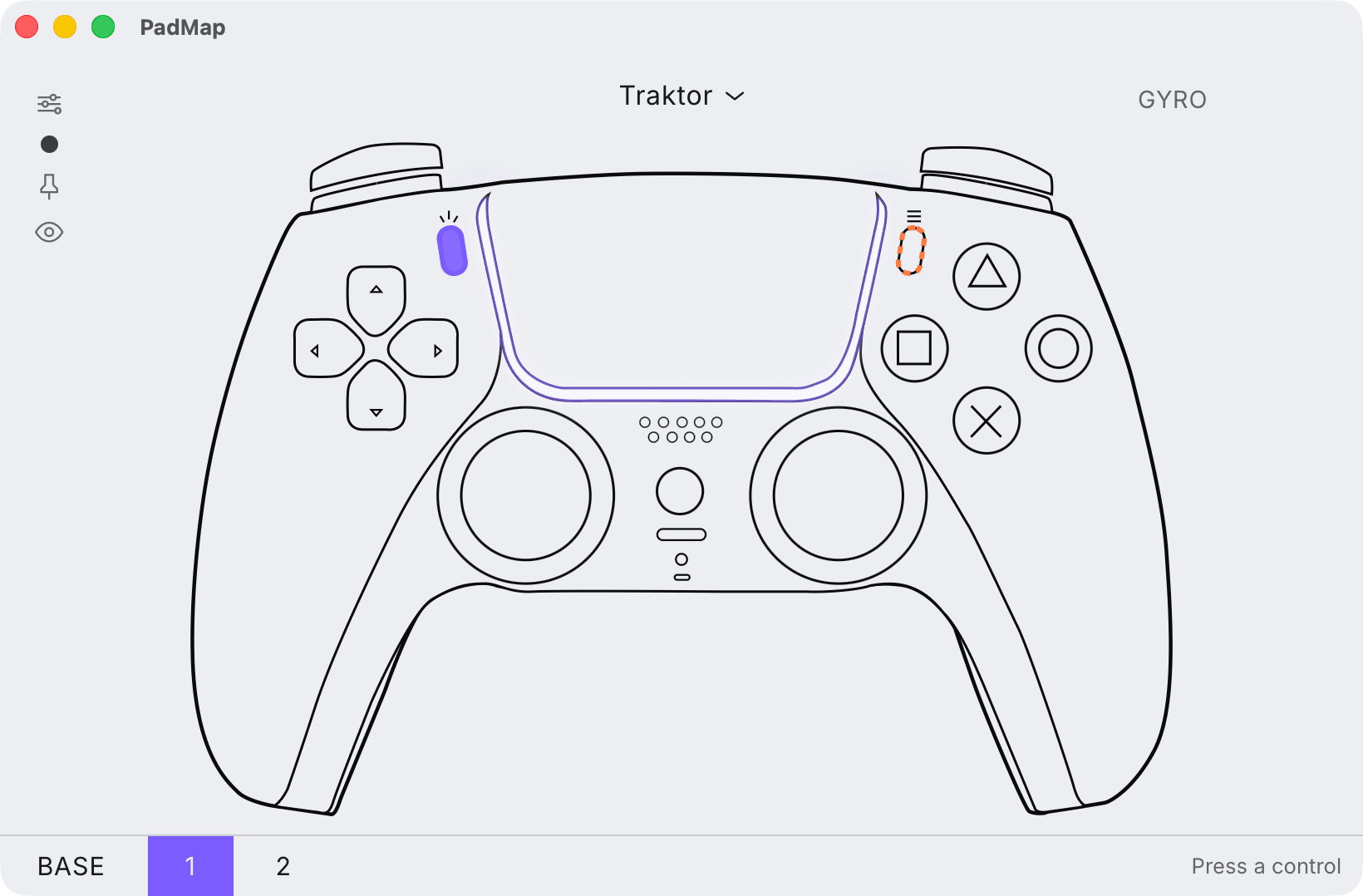
- PadMap layers. Make a control a modifier in PadMap and the rest of the pad sends different notes and CCs while you hold it. Traktor sees each layer as separate controls, so you learn them one after the other with no conditions to set.
- Traktor modifiers. Traktor's own Modifier Conditions in Mapping Details do the same job inside Traktor. They're worth it if you already build mappings that way.
Limits worth knowing
- No jog wheels. A stick is not a platter. Use the pad for cues, loops, effects and browsing, next to whatever you use for pitch and scratching.
- Sticks rest in the middle. That suits filters and anything centred. For a channel fader, a trigger is the better fit, or leave faders on your mixer.
- Save the mapping. Use Export in Controller Manager to keep a copy of the Generic MIDI device once it works.
Written by Oskar Schachtschneider, who builds PadMap at Sinuslabs.